GPS Crew Tracking for Moving Companies: Why Work Order-Based Tracking Beats Supervisor-Based Tracking
Every dispatcher knows the 2 PM problem. Three crews are out, a customer calls asking where their movers are, and the tracking screen shows — something. A pin that might be current or might be from this morning. One dot for a supervisor who’s running two jobs. A blank map with no explanation. The dispatcher puts the customer on hold and calls the crew, which is exactly the workflow GPS tracking was supposed to eliminate.
The root cause is architectural, and it’s worth understanding because it separates tracking systems that dispatchers trust from ones they quietly stop using: most crew tracking ties the GPS signal to a person. Crew Tracking 2.0, released for Movegistics AI in July 2026, ties it to the job. That one change — Work Order-based tracking instead of supervisor-based tracking — is what makes the map answer the dispatcher’s actual question: “where is this job right now?”
The Problem with Supervisor-Based Tracking
In the previous architecture — and in most competing systems — the GPS location is stored against the supervisor carrying the phone. That works until the day gets realistic. A supervisor assigned to multiple active Work Orders produces one location for every job, so a dispatcher looking at Job B sees the truck parked at Job A and can’t tell whether that’s correct, stale, or a data error. Completed jobs vanish. Jobs that haven’t started show nothing at all, with no hint whether the crew is late, the app is closed, or the job was never dispatched to the field.
Dispatchers respond to ambiguous maps rationally: they stop believing them and go back to phone calls. The instrumentation exists, but the trust doesn’t — and tracking that isn’t trusted delivers none of its value.
What Changes with Work Order-Based Tracking
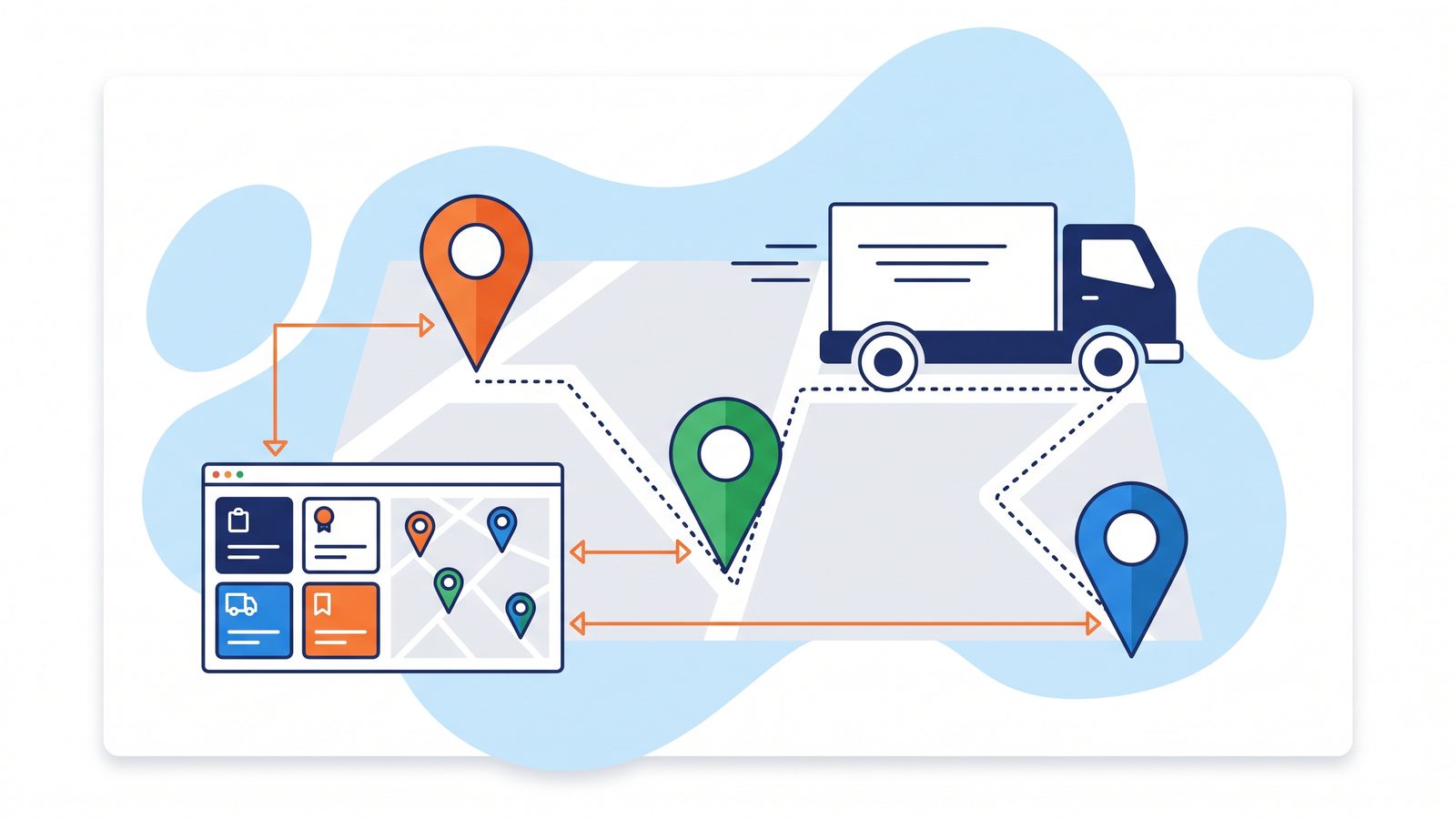
Crew Tracking 2.0 rebuilds the model so the Crew App’s GPS updates are saved against every In Progress Work Order assigned to the logged-in user, and the map draws one pin per Work Order at its latest saved location. A supervisor running multiple jobs produces a separate pin for every job. The screen is organized around the day, not the roster:
- The full day by default. The panel shows every Work Order scheduled for today grouped by status — active, completed, and not-yet-started — instead of a blank map between jobs. The counter in the top right shows today’s total.
- One pin per job, colored by status. Orange for In Progress, green for Complete, blue for New — matched exactly between the map pins and the work order list, so the map and the panel never tell different stories.
- Freshness timestamps everywhere. Every work order card and every pin popup shows when the last GPS signal was received — “Updated 10 hr ago” — so a live pin and a stale pin are visually distinct at a glance.
- Job-level focus. Click any In Progress card and the map focuses on that crew’s truck, with the work order details and the exact age of the most recent signal in the popup.
- Completed jobs stay visible. Finished work orders remain on the day’s view with a Complete badge, so the afternoon picture includes the morning’s work.
An Empty Map That Explains Itself
The subtle failure mode of every tracking screen is silence — a missing pin with no explanation, which reads as “the system is broken” even when the system is fine. Crew Tracking 2.0 treats explanations as part of the feature. If nothing displays, an information panel lists the possible reasons: no work orders scheduled today, scheduled work orders without GPS coordinates, or crews that haven’t started tracking. A card with no “Updated” timestamp identifies a manually created work order that was never posted to the Crew App — so live tracking was never possible for it, and the screen says so. And if a tracked job has no live signal, clicking it states the specific cause: the supervisor didn’t start the job in the Crew App, never opened the app, or completed the job and closed it.
For dispatchers, this converts every “why is the map empty?” moment from a support ticket into a one-glance answer.
A 30-minute demo of Crew Tracking 2.0 on a realistic multi-crew, multi-job day.
The Details Operations Managers Will Care About
- Tracking follows status, not the clock. If a work order’s scheduled end time passes but the job is still In Progress, tracking continues and the pin stays up. Long jobs don’t fall off the map at 5 PM.
- Timezone-safe by design. Work order times are stored in UTC, and pin visibility follows the work order’s own schedule — a corporate user in one timezone sees crews working in another without filtering surprises. For multi-branch operations this is the difference between one usable national view and three browser tabs.
- GPS comes from the assigned supervisor’s device. The supervisor must be assigned to the work order team, logged into the Crew App, and have started the job. If updates stop, the usual causes are an app that was closed or logged out, or denied location permissions — all of which the screen surfaces rather than hiding.
What to Tell Your Crews
Job-level tracking is only as good as the signal coming from the field, and four conditions put a crew on the map: logged in at the start of the shift (not at the customer’s curb), location permission allowed, the app kept open rather than swiped away, and a dispatched Work Order assigned. Crews drop off the map when they tap Complete Job — that’s normal, and they reappear on the next pickup. The Crew App Supervisor’s Field Guide on the updates board covers this checklist alongside the full job-day workflow, and pairs well with our deep dive on the Crew App’s mobile BOL, signature, and payment workflow.
Where This Fits in the Dispatch Stack
Crew Tracking 2.0 lives under Operations → Crew Tracking and reads from the same data the rest of the operations stack writes: dispatch assigns the team, the Crew App drives status and GPS, and the tracking screen renders the day. It complements the Daily Job Chart released in May — the Job Chart answers “what capacity do I have and what’s scheduled?”, Crew Tracking answers “where is everything right now?” Together with role-based resource allocation and the worker accept/decline workflow from the July release set, the dispatch day is instrumented from assignment through final delivery.
Frequently Asked Questions About GPS Crew Tracking
What is Work Order-based GPS tracking?
Work Order-based tracking saves the crew’s GPS location against each In Progress Work Order rather than against the supervisor carrying the phone. Each active job gets its own map pin at its latest saved location — so a supervisor running multiple jobs produces a separate, accurate pin for every job instead of one shared location.
Why does my crew not show up on the tracking map?
Four conditions put a crew on the map: the supervisor is logged into the Crew App, location permission is allowed, the app is open (not swiped away), and a Work Order has been dispatched to them. Crew Tracking 2.0 also explains gaps in context — manually created work orders that were never posted to the Crew App are labeled as such, and tracked jobs without a live signal show the specific reason when clicked.
Can dispatchers see completed and not-yet-started jobs, or only active ones?
The full day, by default. The panel shows every Work Order scheduled for the current date grouped by status — In Progress (orange), Complete (green), and New / not yet started (blue) — with matching pin colors on the map. Completed jobs stay visible with a Complete badge for the rest of the day.
How do I know whether a GPS pin is current?
Every work order card and every map pin popup carries a freshness timestamp showing when the last GPS signal was received — for example, “Updated 10 hr ago.” A live pin and a stale pin are visually distinguishable at a glance, which is what makes the map trustworthy during a customer call.
Does tracking stop when a job runs past its scheduled end time?
No. Tracking follows job status, not the clock — if the work order is still In Progress past its scheduled end, tracking continues and the pin stays on the map until the crew completes the job. Times are stored in UTC, so visibility behaves correctly across timezones for multi-branch operations.
Put every truck on one trustworthy map
Get a 30-minute walkthrough of Crew Tracking 2.0 and the Crew App workflow that powers it — on your own job mix, crew structure, and branch layout.
Book a Demo
Typical demo: 30 minutes · For movers of every size